The production board
The production board
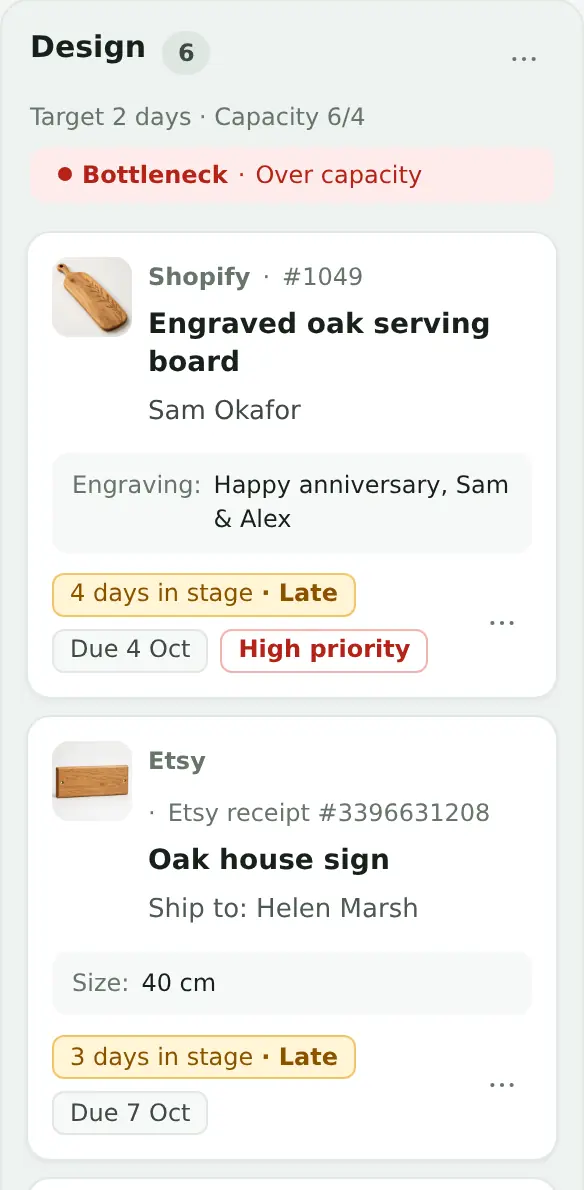
The board shows every active job in the stage it has reached. Each card shows where the order came from, who it’s for, its options and personalisation, how long it has been in its stage and when it’s due.
On this page
Moving jobs
Drag a card to another stage, or open the job and use Move to another stage. Each move is recorded in the job’s stage timeline, and the time in stage starts again.
Reaching the last stage doesn’t finish a job. It stays active until you choose Mark completed.
Job details, priority and notes
Select a job’s title to open its details. From there you can move it, set its due date, add notes, and see its items, personalisation, order details and stage timeline.
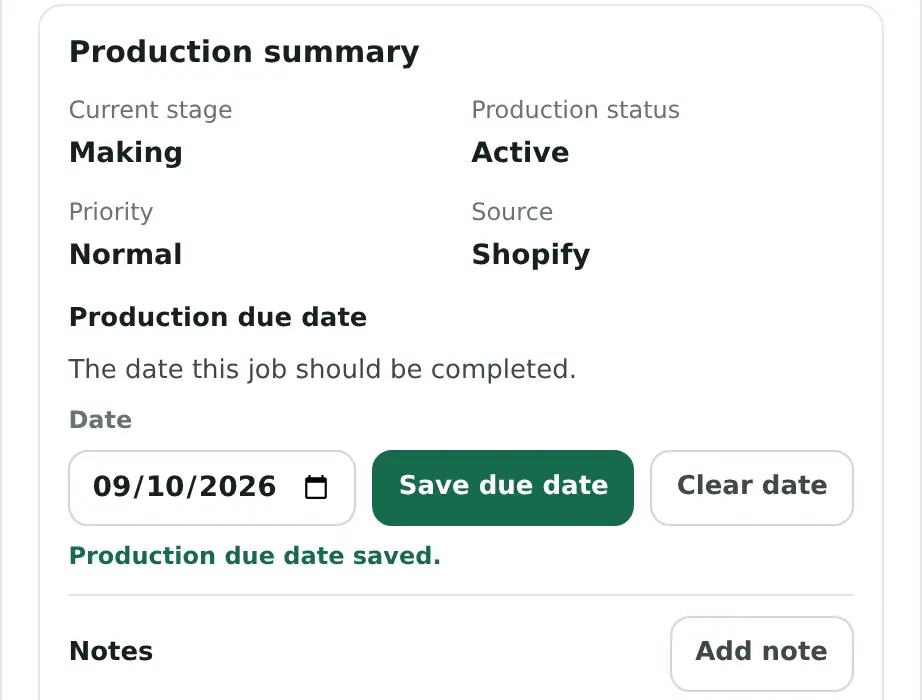
- Priority is Normal or High. High-priority jobs are marked on the card and appear in Urgent work.
- Notes are for you and anyone working with you. They stay in ProdBord and are never sent to Shopify, Etsy or your customer.
Capacity and target times
Set these for each stage in Workflow. Both are optional, and neither stops you moving jobs.

- Target time is how long a job should spend in the stage, in hours. A job that stays longer is marked Late and counted as running late.
- Capacity is how many jobs the stage can handle at once. The stage header shows how many it has against that number, for example Capacity 6/4 means 6 jobs in a stage that can take 4.
A stage is marked Bottleneck when it holds more jobs than its capacity, or when too many of its jobs are running late. It’s the stage to look at first.
Board views
- Active: every job currently in production.
- Urgent work: jobs that are overdue, due today or marked High priority.
- Running late: jobs that have been in a stage longer than its target time.
- Bottlenecks: stages over their capacity.
- Completed: jobs you’ve marked completed, kept for 30 days.
- Removed: jobs you’ve taken off the board, kept for 30 days.
Search by job, order or customer, and filter by source (Shopify, Etsy or Manual) or by whether a job has personalisation.
Due dates and the calendar
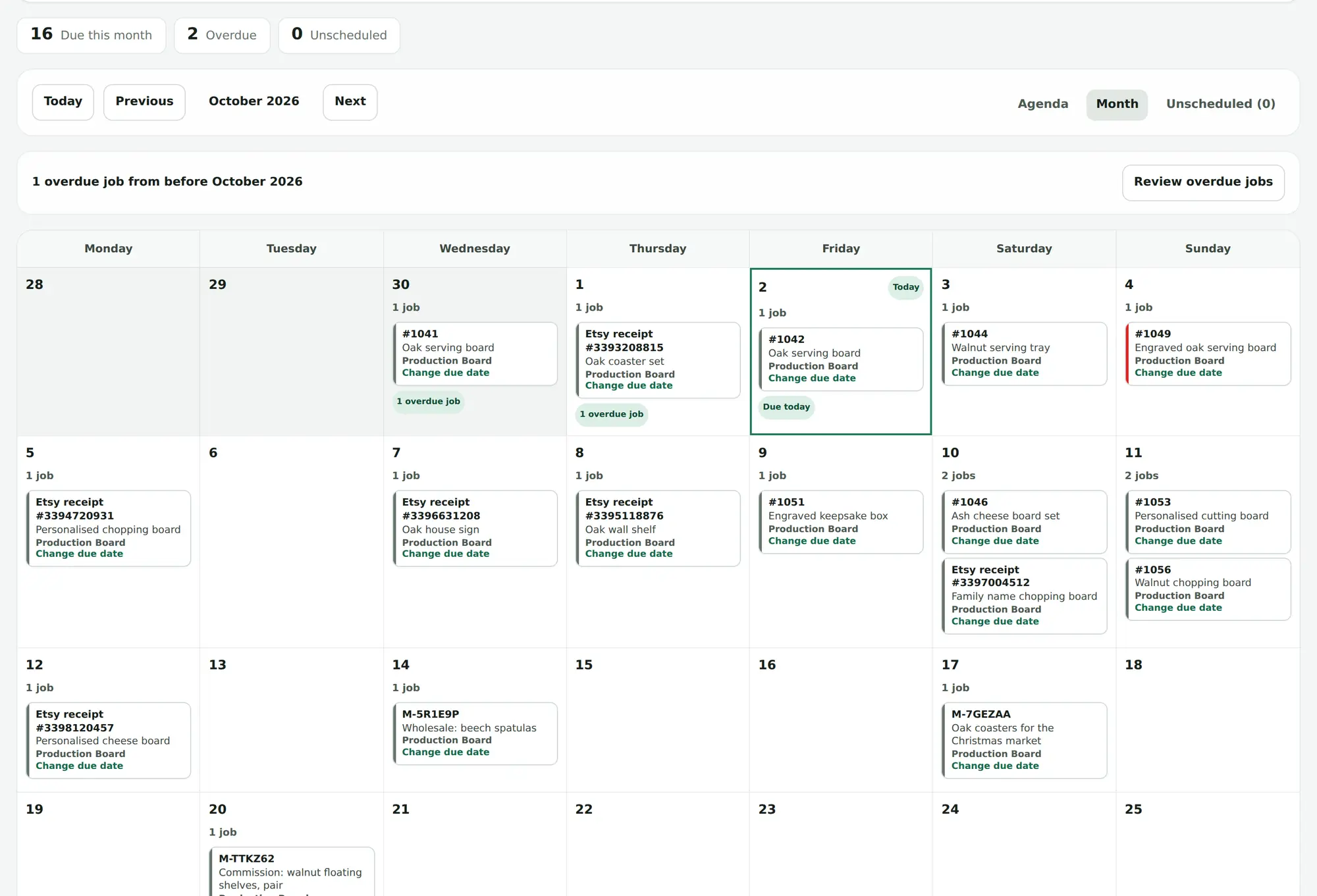
A job’s production due date is the date you want it finished. Set it when you add a job or later from its details. Dates on cards read like Due 9 Oct, Due tomorrow or Overdue.
The Calendar shows dated jobs from all your boards:
- Agenda lists them by day, with overdue work at the top.
- Month shows them on a month grid.
- Unscheduled lists active jobs without a date, so you can give them one, several at a time if you like.
Etsy’s expected ship date isn’t copied into the due date. The due date is yours to set.
Completing and removing jobs
- Mark completed moves a job to Completed. It’s kept there for 30 days and then deleted from ProdBord.
- Remove from board takes a job off the board without completing it, for example if an order was cancelled. It stays in Removed for 30 days, where you can restore it.
- Delete now deletes a completed or removed job straight away.
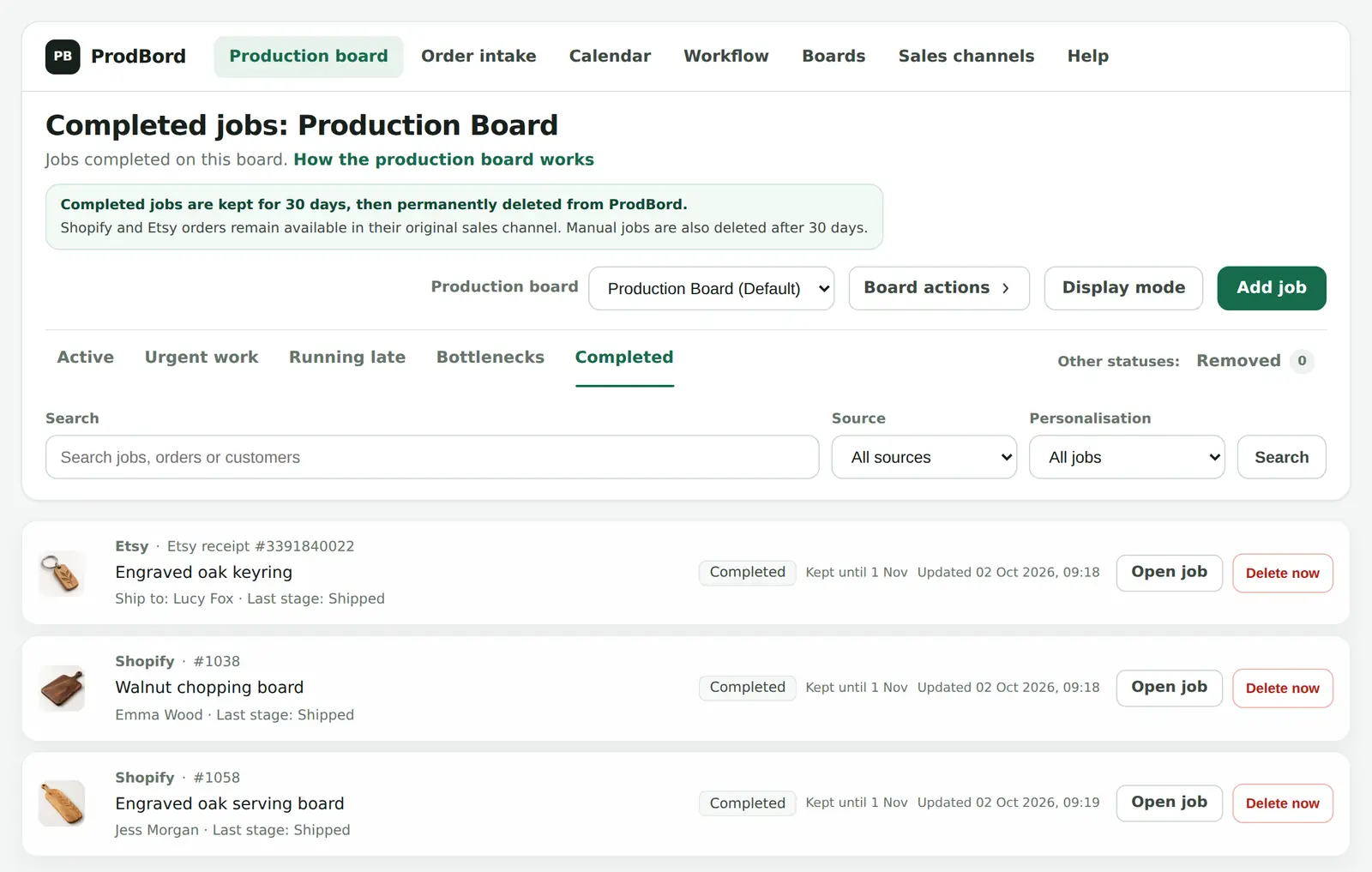
Deleting a job never touches the original order in Shopify or Etsy. Jobs you added by hand are deleted with no copy anywhere else, so keep your own record of anything you need long term.
More than one board
If you make different kinds of product with different steps, create a separate board for each in Boards. Each board has its own stages. Switch between them from the board selector, and move a job to another board from its details. The calendar shows all boards together unless you filter it.
Display mode
Display mode shows the board for a screen in your workshop. It refreshes on its own, can go full screen and can’t be changed by accident, because cards can’t be dragged.